
Pellet stove WiFi module FAQ
Quick answers about our ComfortBilt / Castle Serenity WiFi module. We run these on our own stoves, so if your question isn't here, just ask. Stuck on setup? Jump to Troubleshooting.
Will it work with my stove?
Yes, if it has the newer-style head unit. It supports ComfortBilt and Castle Serenity stoves with the newer control panel. If there's a little house icon in the center of the display, it's compatible. Older screens without the house icon won't work.
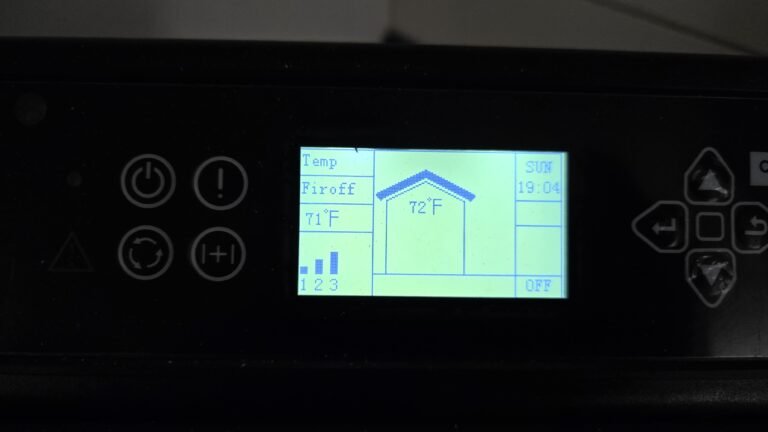 This is the head unit you need. Look for the house icon in the center.
Not sure? Email a photo of your screen to support@bcinnovate.com and we'll tell you.
How do I set it up?
The app walks you through setup step by step, and it only takes about 5–10 minutes.
Where does it plug in?
Into the 4-pin port on the back of your stove's control panel (the head unit). You might need to snap off a small cover first with snips or a flat screwdriver.
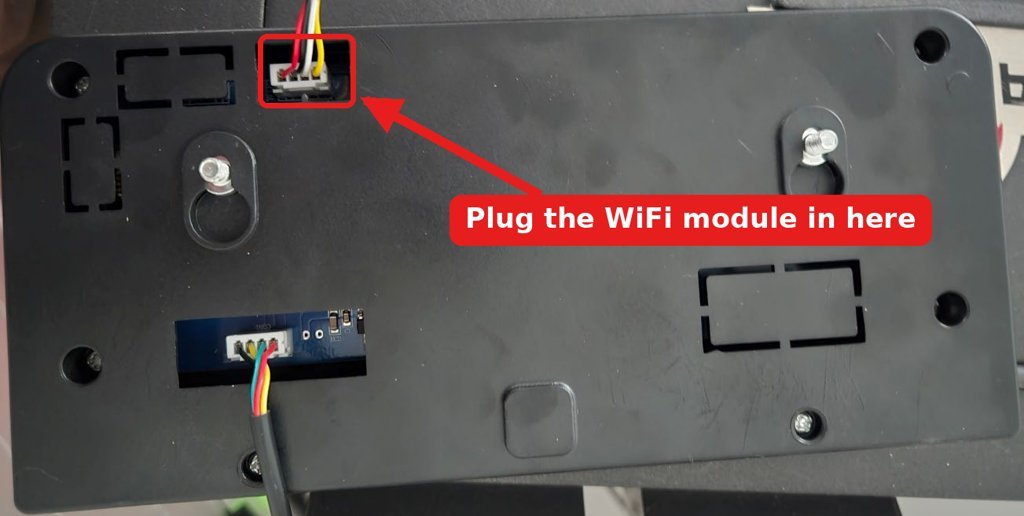 The back of the stove's control panel. The WiFi module plugs into the 4-pin port at the top.
The cable has the same plug on both ends, so you can't put it in backwards. Once it's plugged in, the light on the module blinks blue and it's ready for setup.
What devices does the app work on?
Android, iPhone and any desktop or laptop. On Android, grab Pellet Stove Control on Google Play. On any device, you can also just go to stove.bcinnovate.com in your browser.
On iPhone, the app is a PWA (a web app that installs like a regular app). Open stove.bcinnovate.com in Safari, tap the Share button, then Add to Home Screen, and it works just like a regular app. It'll be in the iPhone App Store soon for easier installing.
My app says “WiFi Module not connected.” What do I do?
Check the light on the module first. If it's solid cyan or orange, the module is on your WiFi but doesn't have your app login saved. That's the #1 thing we see, mostly on iPhone setups where the App Username and Password got left blank.
Fix: factory reset the module (steps below), run setup again, and enter both your WiFi password and your app username and password, exactly how you log in. If the light is a different color, check the LED chart and fixes below.
Can I control my stove when I'm away from home?
Yep. As long as the module is on your home WiFi with working internet, you can control your stove from anywhere in the world: on cellular, at work, wherever. Your phone doesn't need to be on the same network.
Does it still work if my internet goes down?
Yes. It works locally on your home network, so you can still control it from a phone or computer on the same WiFi. Just open a browser and go to the module's address (you'll find it in your router's device list).
All your settings stay active, since they're saved in the module's memory.
What can I do in the app?
Turn it on and off, pick a mode (Manual with burn level 1–5, Temp, Thermostat or Weekly), set on/off temps and a temp swing, run a one-time timer, and set up to 7 weekly schedules under More > Schedules (set your timezone under More first). You also get Child Lock, °F/°C, local weather and notifications.
Can I run more than one stove?
Yes, the app supports multiple stoves. Each stove needs its own WiFi module.
Does the stove's own control panel still work?
Yes. Everything on the stove's buttons keeps working with the module installed, and if you ever unplug it. The one exception is Child Lock: turn it on (from the app or the stove) and it locks the stove's buttons. That's the point.
Does it work with Alexa or Home Assistant?
Alexa: yes. Enable the “Pellet Stove Control – BC” skill in the Alexa app, sign in with your app login, and your stove shows up automatically. Then try “Alexa, set the pellet stove to 72 degrees.” If the app works but Alexa doesn't, unlink and relink the skill.
Home Assistant: yes, with our custom HACS integration (ha-bc-pellet-stove). Add it as a custom repository (category: Integration), download BC Pellet Stove, restart, add the integration and enter the stove's local IP address. It runs fully local.
What happens after a power outage?
The module keeps its settings and reconnects to your WiFi on its own, so no need to set it up again. Heads up: the stove itself shuts down in an outage, and per the manufacturer's manual it won't relight on its own when the power comes back.
Troubleshooting
What the light means
The little light on the module tells you what it's up to.
| Light | What it means |
|---|---|
| Quick green → red → blue at power-up | Normal self-test |
| Solid green | Factory reset in progress |
| Blinking blue | Needs setup. Join PelletStoveSetup. |
| Solid blue | On your WiFi, still connecting to the stove |
| Blinking magenta | Wrong app username or password |
| Solid cyan | Stove is off, all good |
| Blinking cyan | Stove is off, can't reach our server right now |
| Solid orange | Stove is on, all good |
| Blinking orange | Stove is on, can't reach our server right now |
| Blinking red | The stove is reporting an error. Check the app for the message. |
| Solid yellow | Firmware updating. Leave the power on until it restarts. |
Problem → fix
Most hiccups are one of these.
| What you see | What it means | What to do |
|---|---|---|
| App says “WiFi Module not connected” but the light is solid cyan or orange | No app login saved on the module (the #1 issue on iPhone) | Factory reset, run setup again, and enter both your WiFi password and your app username and password (case sensitive). |
| Blinking blue after you hit Save | Still waiting for setup, usually a wrong WiFi password | Join PelletStoveSetup and run setup again with the right WiFi password. |
| Blinking magenta | Wrong app username or password | Wait for it to go back to blinking blue, then run setup again with your exact app login. |
| Solid blue that doesn't change | On WiFi but not talking to the stove yet | Make sure the cable is pushed in all the way at both ends with no loose pins, and that Wi-Fi is turned on in the stove's settings. |
| Blinking cyan or orange | WiFi is up but it can't reach our server right now | Give it a few minutes, reboot your router, and use your main network (not a guest one). |
| No light at all | Nothing reaching the module | Check the cable is firmly seated at both ends with no bent pins and the stove is plugged in. Cable look damaged? Email us for a new one. Please don't open the module. |
| Can't get to the setup page | Join PelletStoveSetup, turn off mobile data, then go to 192.168.4.1 and tap Configure WiFi. On Android you can also use the app's ⋮ menu → setup wizard. | |
| Drops off after a router reboot or keeps disconnecting | Usually a weak signal | Move the router or module closer if you can, reboot the router, and re-enter your WiFi info if needed. |
How to factory reset the module
Use one of these, not both.
ComfortBilt: from the stove's panel
Go to Settings > General > Wi-Fi Reset, press Enter, then turn Wi-Fi back on.
Castle Serenity (and other stoves): pinhole button
Unplug the cable from the module. Push a paper clip into the small pinhole next to the white connector and hold it while you plug the cable back in. When the light turns solid green, let go. After about 30 seconds it blinks blue. Then run setup again.
You'll know it worked when the light blinks blue and the PelletStoveSetup network shows up. If it goes straight back to solid cyan or orange, the reset didn't take, so try again.
Still stuck? Email support@bcinnovate.com. Tell us your light color (solid or blinking), iPhone or Android, and your stove model, and we'll sort it out.
Shop the WiFi Module